Compress whole folders of photos without visible loss
A folder of photos is always too big for wherever it is going. Kovert compresses the whole folder at once on your own machine, nothing uploaded. A measured run took 24 photos from 36.3 MB to 12.3 MB, 66% smaller, in 2 seconds on a Ryzen 7 7800X3D.
v0.1.0 · Windows 10 and later · macOS on Apple Silicon · free for personal use
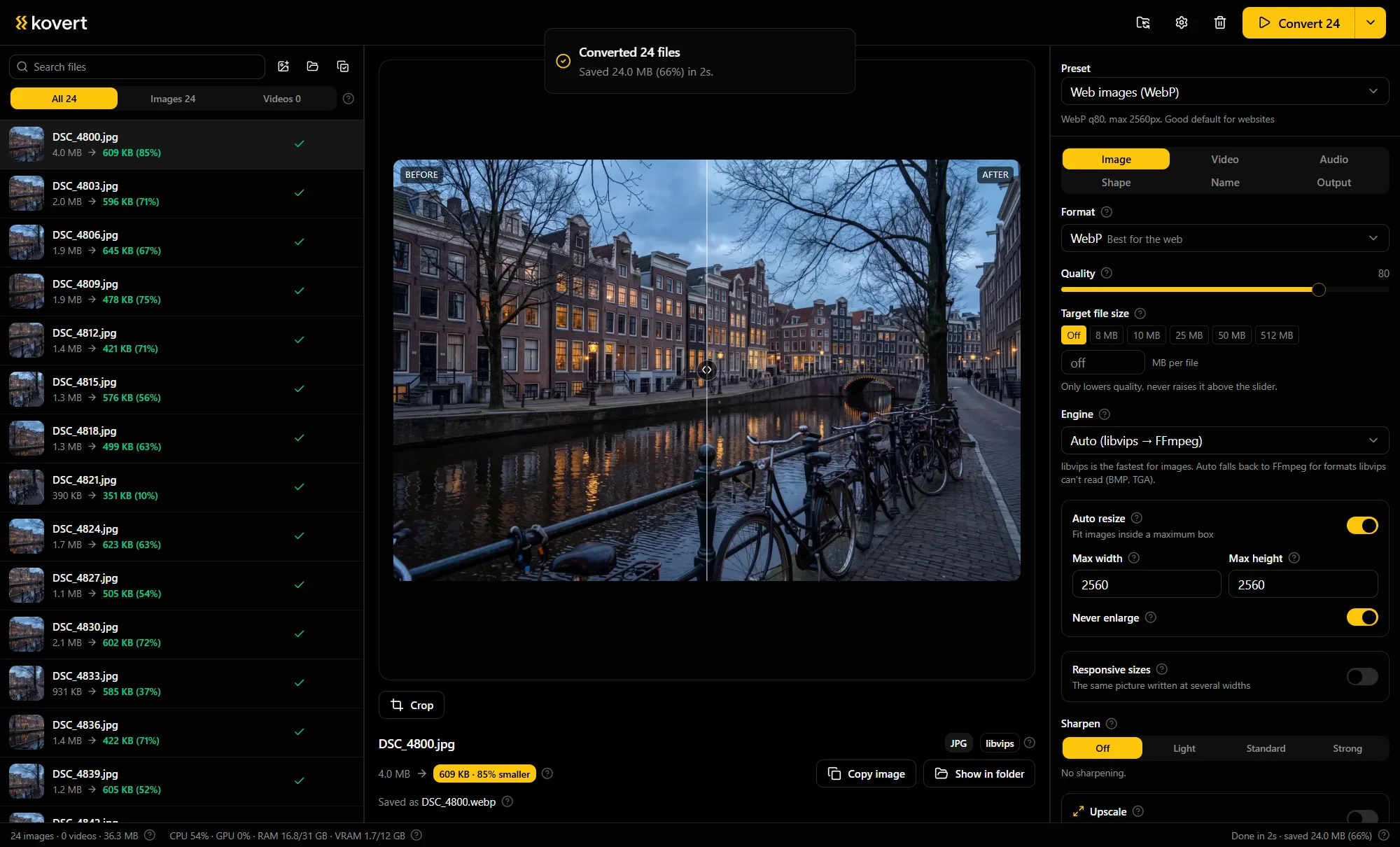
Folder in, smaller files out
Drop the photos in
A folder works, and so does a zip archive. There is no file cap, the batch is limited by your disk and nothing else.
Pick a quality or type a size
Leave JPEG at the preset 82, or switch to WebP at 80 for a smaller result. When a hard limit matters more than a quality number, type the size instead.
Press convert
Smaller files land in a converted folder, or the originals move aside to an originals folder if you prefer the compressed set in place. Anything that would come out larger is skipped, not replaced.
Which quality number, and why
Quality sliders invite fiddling. These are the numbers Kovert ships as presets, and the reasoning behind them.
| Output | Preset | When it is the right pick |
|---|---|---|
| JPEG | Quality 82 | The file must stay a JPG. At 82 the loss is real but not visible at normal viewing size. |
| WebP | Quality 80, long edge capped at 2560 px | The destination accepts WebP. The sensible default for web images. |
| AVIF | Quality 55 | Smallest files of the three. Fine in modern browsers, still patchy elsewhere. |
One measured file: a 4.0 MB JPEG of 5056 by 3392 pixels became a 609 KB WebP.
A size target the sliders cannot hit
Sometimes the number that matters is not a quality, it is a limit. Type a size per image and the encoder searches quality settings until the file fits, down to a floor. If quality alone cannot get there, it steps the dimensions down until it does.
One-click chips cover the common limits, Discord and Gmail among them. Skip if the result is larger does what it says: each photo is converted to a temp file first and only replaces the output when it is actually smaller.
The honest word on lossless
Lossless compression barely shrinks a photograph. A camera JPEG is already compressed, and squeezing it further without loss saves a few percent at best.
It earns its keep on screenshots and graphics, where PNG stays pin sharp and still shrinks. For photos, real savings mean re-encoding, and the presets above sit where the loss stops being visible.
Questions
- Will I see the difference at quality 82?
- On a normal screen at normal size, no. Zoomed to 400% you can find it in fine texture, and the original stays on disk either way.
- Does compressing twice make it worse?
- Yes, every re-encode loses a little more. Compress once, from the best original you have, and keep that original.
- What happens to the metadata?
- Your choice, with three positions: keep everything, strip everything, or keep the camera EXIF and drop the GPS position.
- Why is there a sharpen option?
- Scaling down softens fine detail a touch. The optional sharpen runs only after a downscale, never on a photo that kept its size.
- What happens to my originals?
- Nothing, unless you ask. Converted files land next to the source by default, or Kovert moves the originals aside to an originals folder so the smaller set takes their place.
- Is it free?
- At home, yes: every feature, no account, no expiry. Used for work it needs a business licence, €49 a seat, one time.
Related
- Convert to WebP
The format switch that does most of the shrinking.
- Bulk resize images
When the pixels, not the bytes, are the problem.
- Compress video
The same idea for the videos next to the photos.
Point it at a folder and see what comes back.
v0.1.0 · Windows 10 and later · macOS on Apple Silicon