MOV to MP4, whole folders at once
An iPhone records MOV files, and the video inside is usually HEVC, which older players and editors refuse. Kovert converts whole folders to MP4 with H.264, the codec everything plays. It runs on your own machine, so a multi-GB clip never waits on an upload.
v0.1.0 · Windows 10 and later · macOS on Apple Silicon · free for personal use
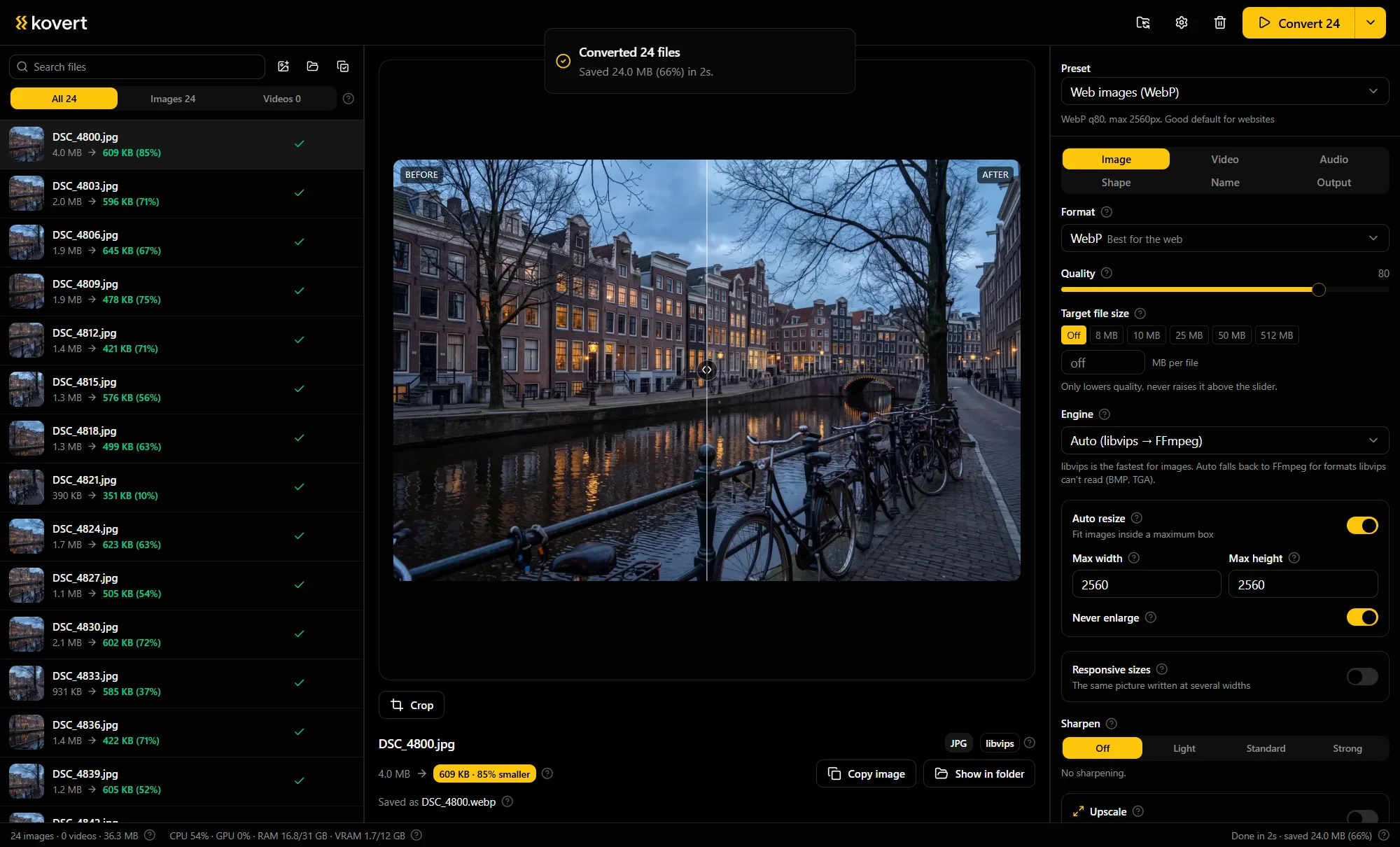
Clips in, MP4s out
Drop the clips in
A folder of clips queues up as one batch. Each file can be trimmed first with a filmstrip scrubber, so the dead seconds at the start never get encoded.
Pick MP4
H.264 opens everywhere and is the safe pick. H.265 and AV1 make smaller files when you know the destination plays them.
Press convert
The hardware encoder does the work when your machine has one, software x264 or x265 otherwise. Vertical clips come out upright, because the phone rotation metadata is read automatically.
Why the MOV will not open
The container is rarely the problem, the codec is. Recent iPhones record HEVC, also called H.265, and plenty of Windows software will not decode it without a Store extension.
Re-encoding to H.264 in an MP4 fixes that in one move. Old TVs, office PCs and editing software from a few versions back all play H.264.
iPhone HDR footage is a second trap. Kovert tonemaps HLG to SDR by default, so the converted clip does not come out grey and washed out on a normal screen.
Hardware encoding, machine by machine
Kovert uses the encoder your hardware has and falls back to software on its own. Nothing to configure.
| Hardware | Encoder | Codecs |
|---|---|---|
| Apple Silicon | VideoToolbox | H.264, H.265 |
| NVIDIA | NVENC | H.264, H.265, AV1 |
| Intel | QuickSync | H.264, H.265, AV1 |
| AMD | AMF | H.264, AV1 |
| None of the above | Software x264 and x265 | H.264, H.265 |
When a card is too old for a codec, Kovert drops to the software encoder automatically.
Fair alternatives
If the goal is only to watch the clip, converting is overkill. VLC is free and plays HEVC directly.
HandBrake converts too, free and well maintained, with more settings than most people want. Kovert earns its place when it is a whole folder rather than one file, and because the same app handles the photo half of the camera roll.
Web converters are the third option, and the slowest one for a file this size. A few minutes of iPhone 4K is a multi-GB file, which means a long upload before any converting starts.
Questions
- Why does my iPhone video not play on Windows?
- The codec. iPhones record HEVC, and Windows wants a Store extension to decode it that many machines do not have. Converted to MP4 H.264, the same clip plays in anything.
- Does converting lose quality?
- A little. Kovert re-encodes rather than copying the stream, and at the default settings the difference is hard to spot. The original MOV stays on disk untouched.
- Why do converted iPhone videos sometimes look washed out?
- That is HDR footage shown on a normal screen without tonemapping. Kovert tonemaps iPhone HLG to SDR by default, so the MP4 looks like the clip you shot.
- What happens to the audio?
- It becomes AAC at 160 kbps inside the MP4, which every player expects.
- Will the MP4 stream on the web?
- Yes. Kovert writes MP4 with faststart, which moves the index to the front of the file so it plays while still downloading.
- Is it free?
- For personal use at home, yes, the whole app. Business use needs a licence, €49 a seat, one time, with a year of updates.
Related
- HEIC to JPG
The photo half of the same camera roll.
- Compress video
Keeping the format but shrinking the file.
- Video for Discord
When the clip has to fit under an upload limit.
Point it at a folder and see what comes back.
v0.1.0 · Windows 10 and later · macOS on Apple Silicon