WebP to JPG, whole folders at once
Sites hand your browser WebP, and your browser saves what it got. When the editor or the print shop then refuses the file, Kovert turns it back into JPG or PNG on your own machine. Nothing is uploaded.
v0.1.0 · Windows 10 and later · macOS on Apple Silicon · free for personal use
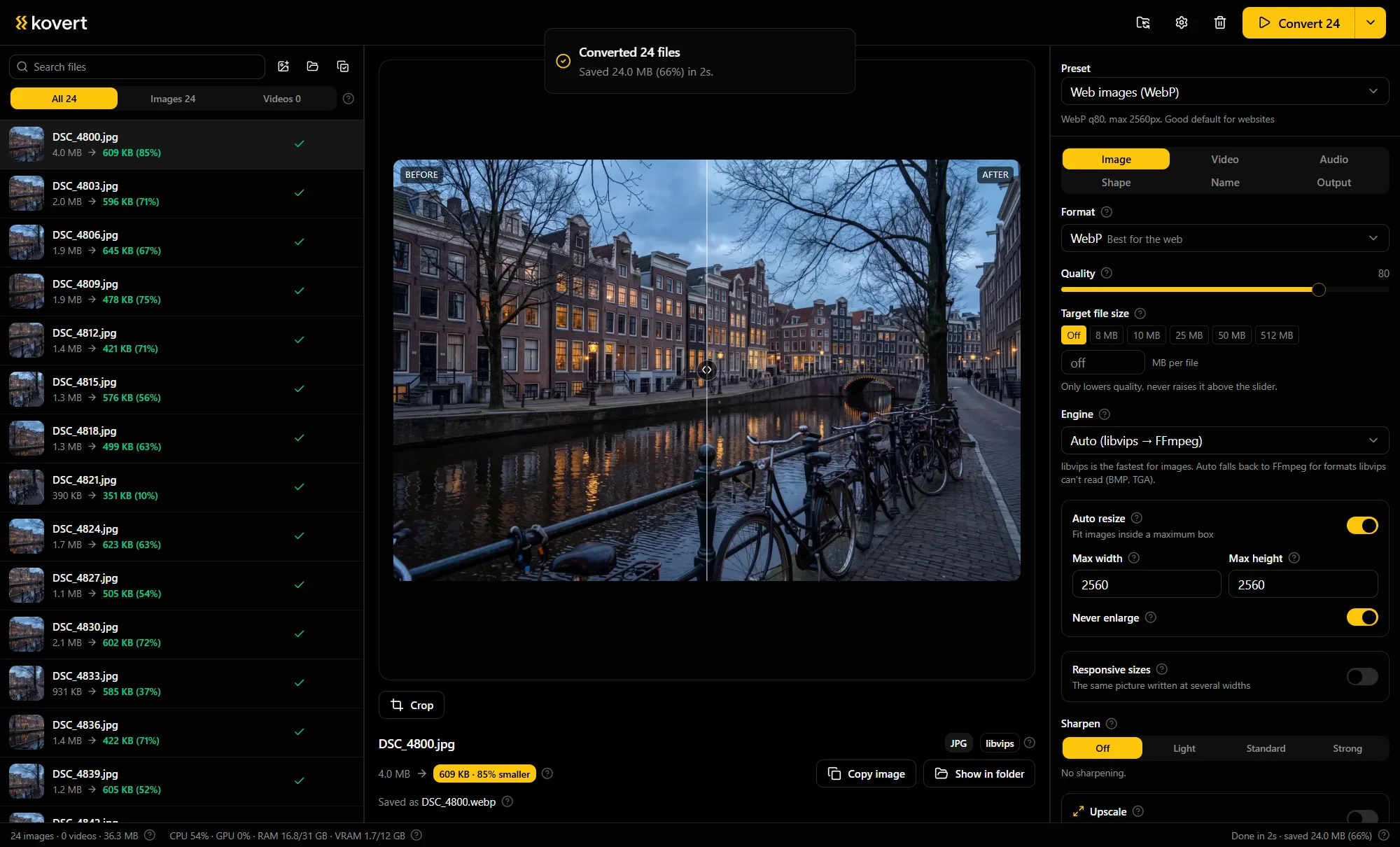
From .webp to a file everything opens
Drop the images in
One file, a whole downloads folder or a zip, all in one drop. Mixed contents are fine, WebP is just one of the formats Kovert reads, and subfolders come along if you want them.
Pick JPG or PNG
JPG for photos, at the preset of 82 it is hard to tell from the original. PNG when the image has transparency, because JPG flattens it onto a solid background.
Press convert
Every image lands in a converted folder next to the source, and the originals stay where they are. Ten files or a thousand, the steps are the same.
Why your downloads are suddenly WebP
WebP is a Google format that makes images about a third smaller than JPG, so websites love it. A modern site often stores a JPG but serves WebP to any browser that accepts it, which by now is every browser.
When you hit save, the browser writes the bytes it was sent. The site keeps its JPG, you get the WebP, and that .webp extension is what older editors, upload forms and print shops choke on.
Renaming the file to .jpg does not fix it, the bytes inside are still WebP. Real conversion re-encodes the image, which is the part Kovert does in bulk.
JPG or PNG, pick by content
Kovert writes both. The choice takes one look at the image.
| JPG | PNG | |
|---|---|---|
| Best for | Photos | Logos, screenshots, hard edges |
| Transparency | Flattened onto a background | Kept |
| File size | Small | Large for photos, small for graphics |
Not sure whether an image has transparency, pick PNG. It never destroys anything, it only costs bytes.
Two shortcuts worth knowing
On Windows, Kovert can add a Convert with Kovert entry to the Explorer right-click menu. It is optional, installs per user without admin rights, and it is the fastest route for the one image you just saved.
The clipboard works too. Copy an image anywhere and paste it straight into the app, no saved file needed first. Handy when a site lets you copy an image but saves it as something awkward.
Questions
- Does converting WebP to JPG lose quality?
- A little, that is what re-encoding is. At the preset of 82 you will struggle to see it, and the WebP original stays on disk untouched.
- My image has a transparent background. JPG or PNG?
- PNG. JPG cannot store transparency, so Kovert flattens the image onto a solid background. For a logo or a cutout that is rarely what you want.
- Can I stop sites giving me WebP in the first place?
- Not really. The server decides what it sends and the browser saves what it receives. Converting afterwards is the fix that always works.
- Can it go the other way, to WebP?
- Yes, the same app writes WebP too. That is the direction site owners want, and it has its own page.
- Is it free?
- At home, yes: every feature, no account, no expiry. Used for work it needs a business licence, €49 a seat, one time.
Related
- HEIC to JPG
The same problem from a phone: photos in a format half your software refuses.
- Convert to WebP
The opposite direction, for people putting images on a site.
- Compress images
When the format is right and the file is just too big.
Point it at a folder and see what comes back.
v0.1.0 · Windows 10 and later · macOS on Apple Silicon