Compress video without uploading it first
A 4 GB video starts converting the moment you drop it, instead of uploading for half an hour first. Pick a quality or type a target size, and the encode runs on your own machine. Nothing is uploaded anywhere.
v0.1.0 · Windows 10 and later · macOS on Apple Silicon · free for personal use
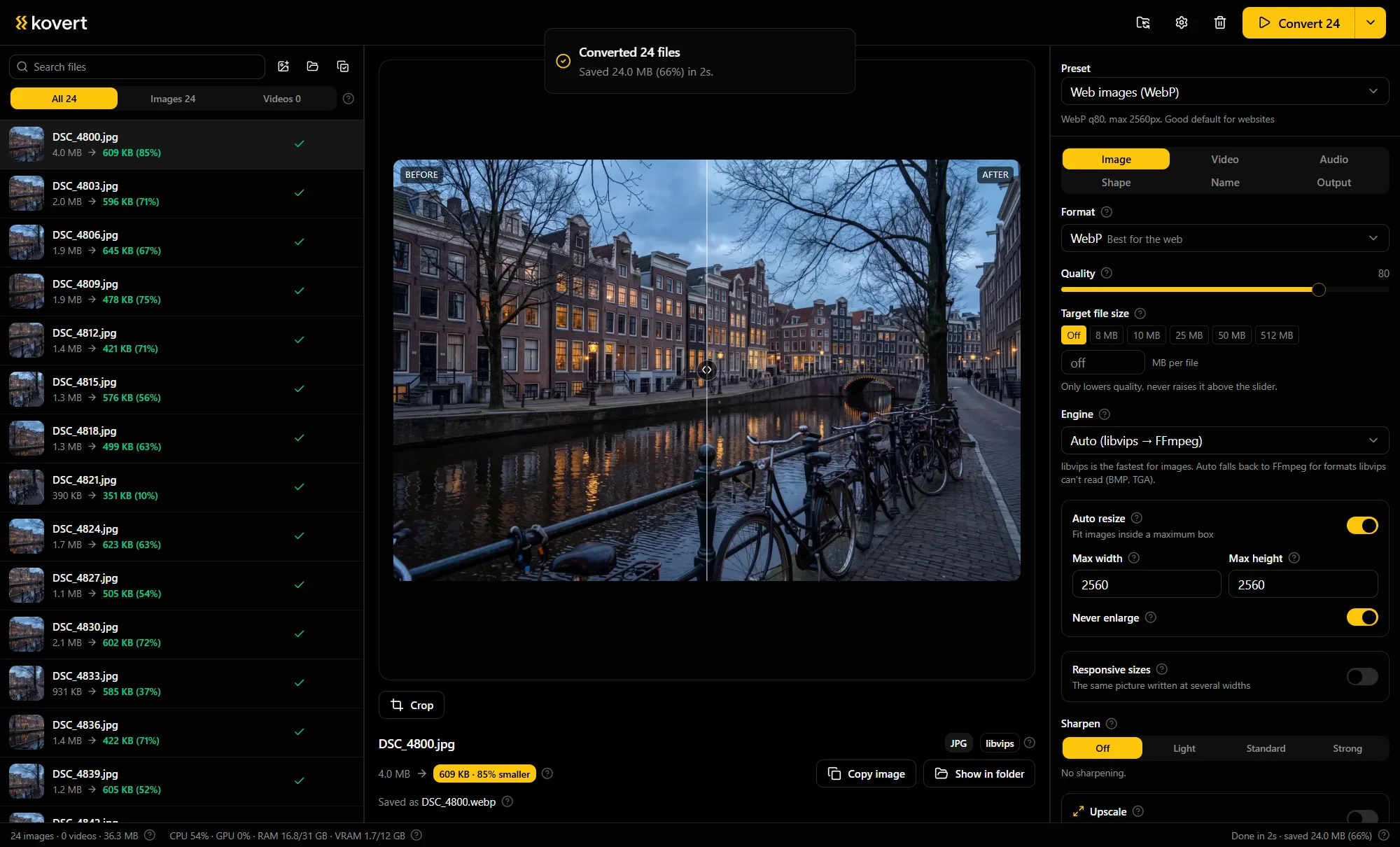
Big file in, small file out
Drop the videos in
One file or a whole folder. Trim first with the filmstrip scrubber, you only pay encode time and megabytes for the seconds you keep.
Pick a quality or a size
A quality level is the everyday choice. A target size is for hard limits, with one-click chips for common ones like a 25 MB email attachment, or type any number.
Press convert
Kovert uses the hardware encoder your machine has and falls back to software on its own. Results land in a converted folder next to the source.
A target size that actually lands
Type a number and the file comes out at that number. Kovert encodes twice: the first pass measures the video, the second spends exactly the bit budget your target allows. So the 25 MB attachment arrives under 25 MB, not near it.
Size targets always run in software, because there accuracy beats speed. Quality encodes use whatever hardware the machine offers: VideoToolbox on Apple Silicon, NVENC or QuickSync on Windows, AMF on AMD cards for H.264 and AV1. Where none applies, the software fallback is automatic.
Three codecs, honestly compared
The codec decides how small the file gets and what can play it.
| Codec | File size | Plays on |
|---|---|---|
| H.264 | The biggest of the three | Effectively everything |
| H.265 | About half the size of H.264 | Modern players and phones |
| AV1 | The smallest | Recent hardware and current browsers |
VP9 is there too, mostly useful for the web. When in doubt, H.264.
When compressing will not help
A file that is already tightly compressed shrinks poorly. Clips that came out of a chat app or down from a streaming site had their spare bits squeezed out at the source, so another pass mostly trades size for visible damage.
Trim instead. Cutting the dead ten seconds at the start is free quality for everything that remains, and often saves more than a lower quality setting would.
Calm footage shrinks best, a screen recording most of all. Grain and camera shake read as detail to an encoder, so noisy clips stay stubbornly large at the same quality.
Questions
- Can video be compressed without losing quality?
- Strictly no, lossy encoding always discards something. A modern codec at a moderate quality level discards detail you will not notice. Without a hard limit to hit, use quality mode and let the size land where it lands.
- Why do phone videos come out grey and washed out elsewhere?
- Recent phones shoot HDR, and converting that without tonemapping flattens the colors. Kovert tonemaps HDR to SDR by default, so the result stays close to what you shot.
- Can it even out the audio too?
- Yes. Loudness can be normalized to broadcast targets using a two-pass EBU R128 measurement, the same standard television works to.
- Does it do whole folders?
- Yes. Drop a folder and every video in it converts with the same settings, each into the converted folder next to its source.
- How much smaller will my file get?
- It depends on how much spare bitrate the original carries, and phone footage carries plenty. Try one file at a quality level and look at the result, the rest of the batch can follow with the same settings.
- Is it free?
- At home, yes: every feature, no account, no expiry. Used for work it needs a business licence, €49 a seat, one time.
Related
- Video for Discord
The 10 MB version of this page, one clip and one number.
- MOV to MP4
When the file is not too big, just a MOV nothing opens.
- Online vs desktop
The upload arithmetic in full, and when online tools are fine.
Point it at a folder and see what comes back.
v0.1.0 · Windows 10 and later · macOS on Apple Silicon